Dugong Technology

Timers for Sporting Shooters

Shot Clock User Guide

User Interface

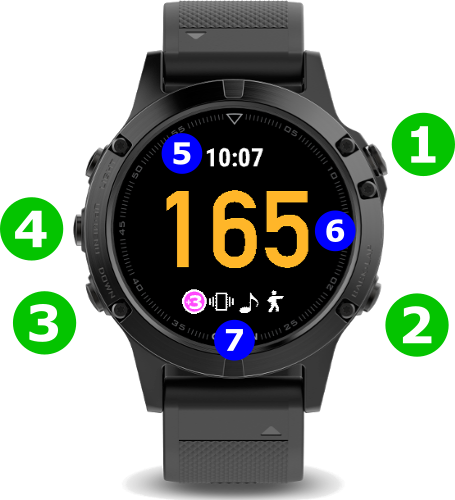
  1. Select / Start / Pause Button
  2. Back / Timer Reset Button
  3. Down Button
  4. Up Button / Menu (Hold)
  5. Current Watch Time
  6. Timer Display
  7. Settings Icons

Using the timer

Match Timer Mode

  • Select the desired match time sequence by scrolling the display up or down using the Watch Up or Down buttons. Match time selection is only possible while the timer is in reset (i.e. not running)
  • Start the match timer by pushing the SELECT / START / PAUSE button
  • The timer can be paused by pressing the SELECT / START / PAUSE button. Restart the timer by pressing the same button a second time.
  • Reset the timer to the starting value by first pausing the timer if it is still running, then push the BACK / TIMER RESET button
  • The timer display values change colour as the timer state moves between  Plus Mode, Running, Paused, or Reset

Count Down or Count Up

wristMT can be configured to Count Down or to Count Up when using the Match Timer.  A separate general purpose (GP) timer is available and operates in Count Up mode only. Select a timer value of zero (o) to enable the GP Timer which will count to a maximum of 999 seconds.

Display Features

Inbuilt Clock

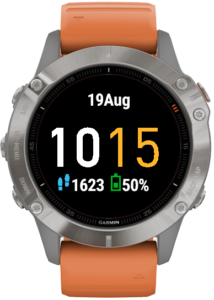
Shot Clock displays the current watch time in the header area of the main timer display. There is also a larger clock display that shows the current watch time, date, steps taken and remaining battery. To show the clock, cycle up or down through the list of available match times. The clock will be displayed once the start or the end of the timer values is reached.

Vibration Active

Start / Stop vibration alerts are enabled and/or Position Change Reminder vibration alerts are enabled.

Sound Active

Start / Stop vibration alerts are enabled and/or Position Change Reminder vibration alerts are enabled.

Gesture Mode Active

Gesture mode is active. Rotating the wrist twice within 1 second will start the timer. There are three sensitivity levels that can be set from the menu. The gesture takes one (1) second to be registered. To compensate for this, the timer starts one second into the countdown when it is started by a the gesture movement.
Settings Menu

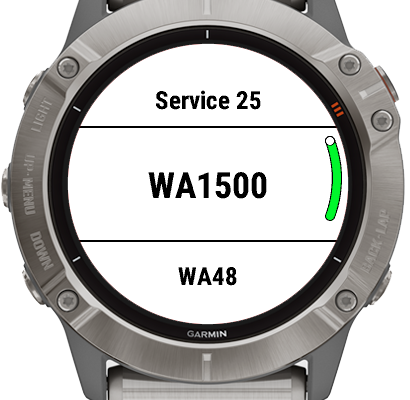
  • Push and hold the Up / Menu button to open the Settings menu
  • Scroll through the settings menu using the UP  & DOWN buttons
  • Enable or disable a setting by pushing the SELECT / START / STOP button
A setting is enabled if the Green Bar is visible as shown in this example.The features and functions that can be configured in the settings menu are described below.

Menu Options

The Match Select menu is used to choose which match times will be available to select in the the main timer display. This provides flexibility to customise the list to the shooters individual needs. For example:-

  • a shooter may only want to display times from the current match being shot to avoid any possibility of selecting the wrong time or
  • a shooter does not shoot some of the matches so these times can be hidden from view.

The following matches are available to be selected:-

  • Action Match
  • Bullseye
  • Custom Times
  • Default
  • ISSF
  • NPA
  • Precision Rifle (PRS)
  • Service
  • WA/PPC

Used to enable or disable Gesture Mode. This allows the timer to be started by rotating the wrist twice within a 1 second period. There are three sensitivity levels to choose from.

Plus Mode allows the shooter to start the Shot Clock timer before the commencement of match firing. This is particularly beneficial in matches where targets turn away for a period of time before match firing commences.

This provides the shooter with two key benefits. Firstly, the shooter can return their attention to the match well in advance of match firing commencing. Secondly, the shooter is not wasting match time by first starting the timer then moving to draw the firearm from the holster. This is particularly beneficial in the shorter timed stages where there is no time to loose.

Pus mode can be set to any value between 0 and 15 seconds.

Icons on the display show if Plus Mode is active. By default, the timer digits also change colour when the timer is in the Plus Mode countdown period. This colour can be customised in the settings. 

Shot Clock vibrates when the timer starts and stops and at any alert intervals configured in the time sequence.

Shot Clock plays a sound when the timer starts and stops and at any alert intervals configured in the time sequence.

Enabling time slice cause a pie chart to be displayed behind the timer value on the watch when the timer is active. The pie chart is designed to allow the shooter to use their peripheral vision to get an indication of how much time is remaining until the next alert.

The Pie Chart will be: –
– Green when there is between 100% and 50% of the time remaining
– Yellow when there is between 50% and 25% of the time remaining
– Red when there is between 25% and 0% of the time remaining

Time Slice operates in two directions – “Build Up” or “Tear Down”. Build up starts with an empty pie chart and builds up to full chart. Tear down is the opposite. It starts with a full Pie chart and gradually removes pieces until the chart is empty.

Time Slice can show time remaining in one of two ways by changing the MODE setting.:

1. NEXT ALERT: The time slice shows the time to the next alert

2. END TIME: The time slice shows the time period until the timer reaches 0

Choose either UP or DOWN to set the count direction

Seconds or Minutes

Causes the watch to vibrate briefly whenever a button is pressed. The use of Haptics gives the user feedback that the button has been pressed. This is particularly useful when starting the timer as the shooters attention can remain on the targets instead of diverting to the watch to confirm that the timer has started.

Enabling Activity Recording allows the application to record metrics such as Heart Rate & Steps taken.

See Garmin Connect Activities for more information.

Reset Time Sequences: There is a great deal of flexibility available to update and customise the time sequences in wristMT. It’s possible that users may lose track of the customisations and end up with the configurations that don’t work for the built in matches. Reset timer Sequences allows the user to restore the factory defaults to all Time Sequences in the system.

Backup: Store a backup copy of time sequence customisations to the cloud

Restore: Restore time sequence customisations from the cloud

Note: Backup and Restore and tied to your watch. You cannot backup customisations on one watch and restore to another.

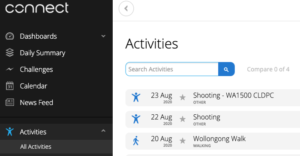
Garmin Connect Activities

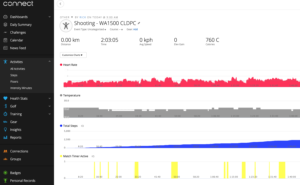
Shot Clock can integrate with Garmin Connect and record details about your shooting activities. Turn this feature on by enabling Activity Recording in the settings menu.

When enabled, Shot Clock will record:-

  • Heart Rate
  • Temperature & Elevation
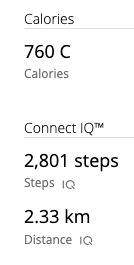
  • Steps Taken
  • Distance Covered
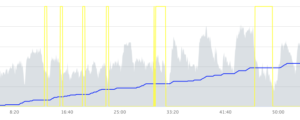
  • Periods of timer activity

This data is uploaded to the shooter’s Garmin Connect account when quitting the application. It can be viewed along side other watch activities such as running, cycling, or swimming.

Using the Garmin Connect website, shooters will be able to:-

  • See graphs of key metrics such as heart rate, steps taken and distance covered
  • Overlay one graph on another to get insight into how the anticipation of match firing or walking up and down range is impacting heart rate
  • View other data about their shooting session including steps taken and distance covered

Users will be given the option to Save or Discard Activity data when exiting the application.

Customising Alerts

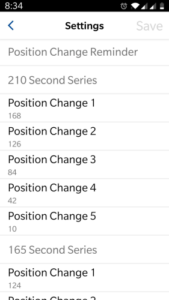
Shot Clock can be configured to alert the user via sound and/or vibration when position changes and reloads should occur in multi-position stages. By default these alerts are evenly spaced across the available time for the stage.

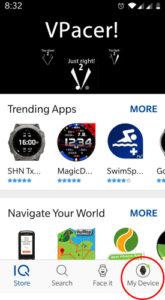
The alerts times can be changed by using the Garmin IQ mobile phone application.

Instructions: 

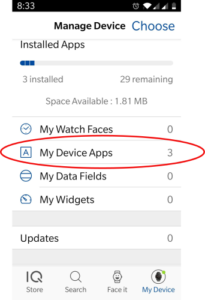
  1. Open the Garmin Connect Application`
  2. Select My Device
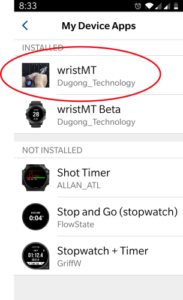
  3. Select My Device Apps
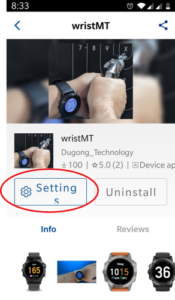
  4. Select wristMT
  5. Click Settings
  6. Choose a series and Position Change value to edit
  7. Edit the time
  8. Click Save

Use Shot Clock to Train

Shot Clock is a great training aid both on and off the range. The fully functional match timer used in conjunction with PlusMode and Sound & Vibration alerts gives the shooter complete independence from other shooters and range infrastructure. Shoot the matches you want without interfering with other shooters.

Want to train at home or away from the range. No problem. Simply use the same setup. The Sound & Vibration alerts will signal the start of match firing. Practice your draw from the holster. Practice Dry Firing and have confidence that Shot Clock will alert you when your time is up.

Custom Times

Check out this page for instructions on how to setup and use Custom Times